Download Complete YouTube Channel using IDM (Internet Download Manager)
Downloading a complete YouTube Channel for off line watching or viewing is extremely necessary especially if a user will not always have access to the Internet when he or she wants to access the video on the channel.
Channel normally have series of tutorial, usually continuation from one step to another (usually from beginner to advanced) or the Channel of a complete album or a series of related or associated videos.
So in order to have the full and complete video present in the Channel. Check out how you can download a Complete YouTube Channel using Internet Download Manager (IDM).
The following steps listed below will guide you on how to download complete YouTube Channel Video using IDM:
1) Launch Your Web browser, Go to YouTube, get or copy the link (URL) of Channel to download. A channel is like https://www.youtube.com/user/mayowaacademy or http://www.youtube.com/channel/UCY30JRSgfhYXA6i6xX1erWg. Go to the channel and click on Channel, then copy the link above.
So in order to have the full and complete video present in the Channel. Check out how you can download a Complete YouTube Channel using Internet Download Manager (IDM).
The following steps listed below will guide you on how to download complete YouTube Channel Video using IDM:
1) Launch Your Web browser, Go to YouTube, get or copy the link (URL) of Channel to download. A channel is like https://www.youtube.com/user/mayowaacademy or http://www.youtube.com/channel/UCY30JRSgfhYXA6i6xX1erWg. Go to the channel and click on Channel, then copy the link above.
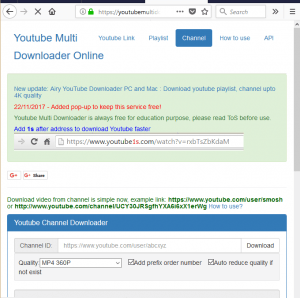
2) Go to YouTube Multi Downloader
3) On the top right, click on Channel
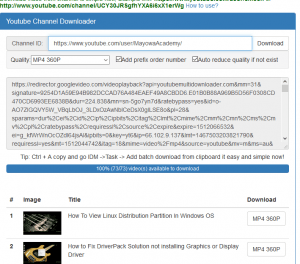
4) A YouTube Channel downloader will appear, select format for the download, For example mp4 360p, MP4 720p, MP3 1080p and other formats available
5) Paste Channel link(url) in the space available and click on download
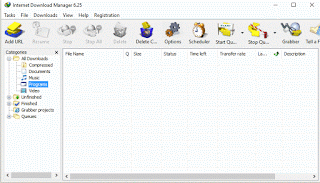
6) Copy the link available, launch the internet download manager
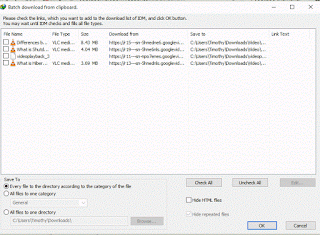
7) On the menu bar, click on Task, click on Add batch download from clipboard
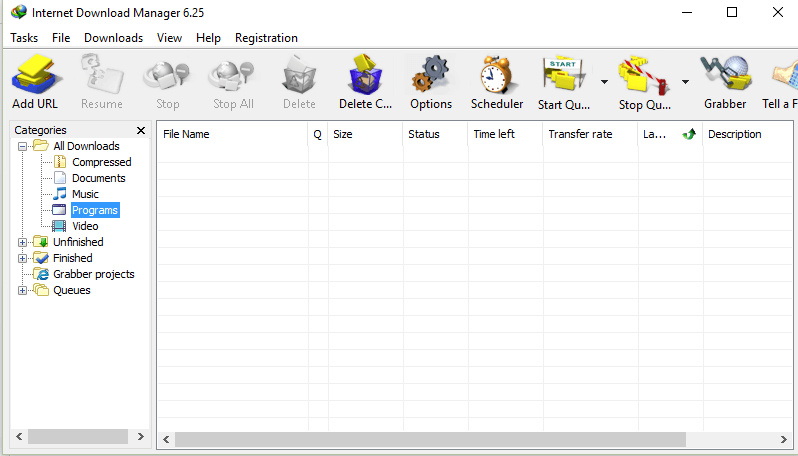
8) Check Videos you want to download or Right Click and Click on Check All or Click Check All, Click on Ok
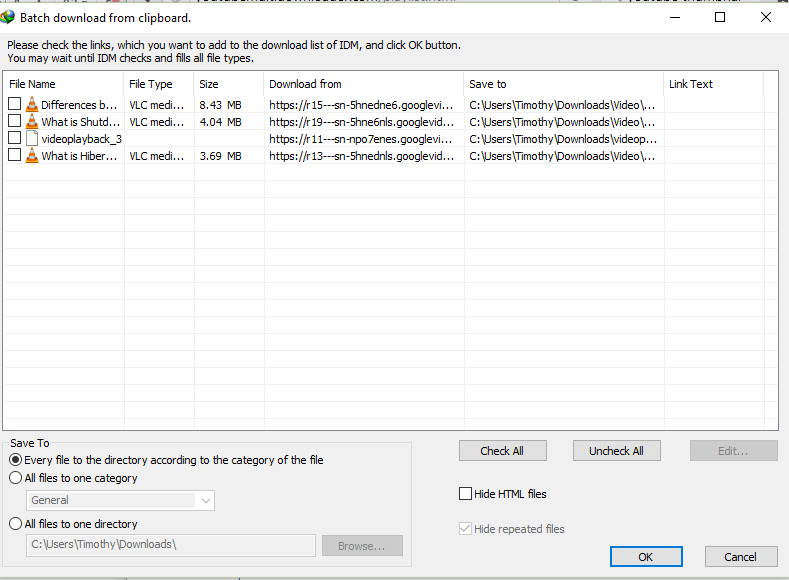
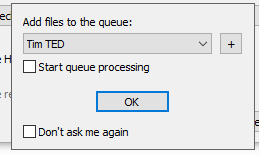
9) It will ask you to add file to queue, you can create a new queue by pressing the + button.
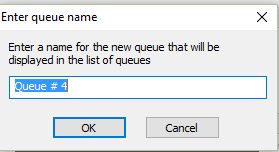
10) Type in the Queue name and click on Ok
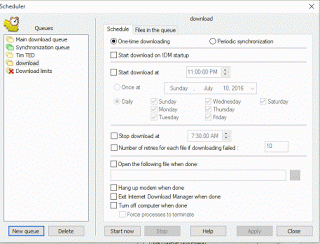
11) Then you setup a queue settings and click on Start now, if you want to start the download immediately.

12) Click on Ok and the download will start immediately.
Hope You have been able to learn how to download YouTube Channel Using IDM (Internet Download Manager).
Please share and like below, also comment for any problem faced or encountered..
Thank you for the helpful tip, worked like a charm.
Dear the most wonderful person who invented this.
I would like to tell you that the “Channel” function has error on connecting to the server. Could you please help to fix it. Thanks.
Someone admires your talent.
Please it is working now, or make use of a VPN if it does not work, it might be from your network provider.
You could also make use of Opera Browser and make use of its free VPN, https://aboutdevice.com/enable-vpn-on-opera-web-browser/
Go to the channel of WarOwl -> Try to download it -> Realize that you don’t have enough disk space -> Cry?
No seriously. Some people have so much content on their channels that it’s impossible to download everything haha.
That’s actually. After loading this on idm, you can select or check the ones you need