How to take a snapshot, screenshot or screen capture with VLC Media Player using keyboard shortcut or using right click.Ever watching a movie or a video and find a spot you will like to have an image of, Yep. Actually you can take a snapshot or a screenshot of the position with the VLC media player either using a keyboard shortcut or by clicking on Take snapshot or screenshot either on the Menu bar or by Right Clicking on VLC Media player window.
Using the Keyboard Shortcut (The Best Option)
1. By pressing Shift + S
(The snapshot is automatically saved in the Pictures folder in Windows, C:UsersPictures).
By adding the snapshot menu
1. Launch the VLC Media Player.
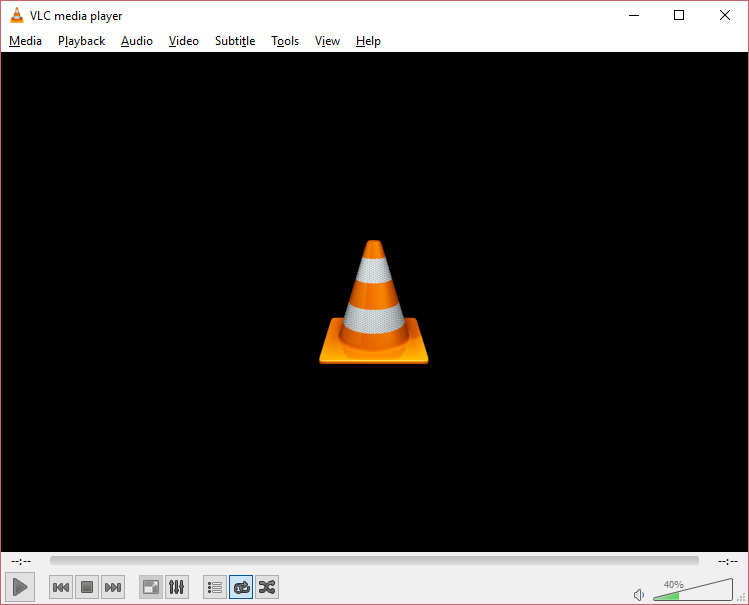
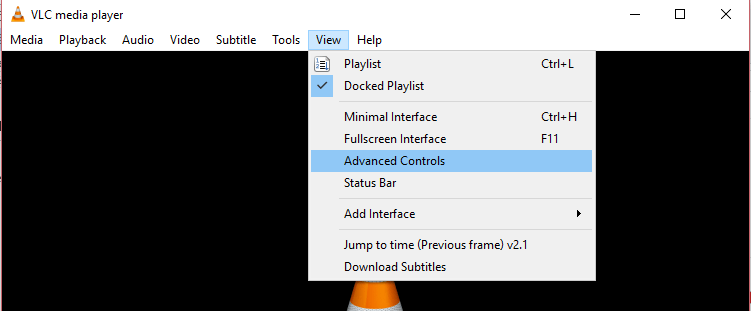
2. On the menu bar of the VLC Media Player, Click on View then Click on Advanced Controls.
 3. The advanced controls will be showed below the played button. The take a snapshot is the second options or button in the advanced controls. To take a snapshot, click on the button or icon (The snapshot is automatically saved in the Pictures folder in Windows, C:/Users/Pictures).

By using Video Menu Bar
1. Click on Video on the Menu bar and click on Take Snapshot at the particular position of the video if you want to take a snapshot. (The snapshot is automatically saved in the Pictures folder in Windows, C:/Users/Pictures)
 How to take snapshot with Right Clicking on the Video
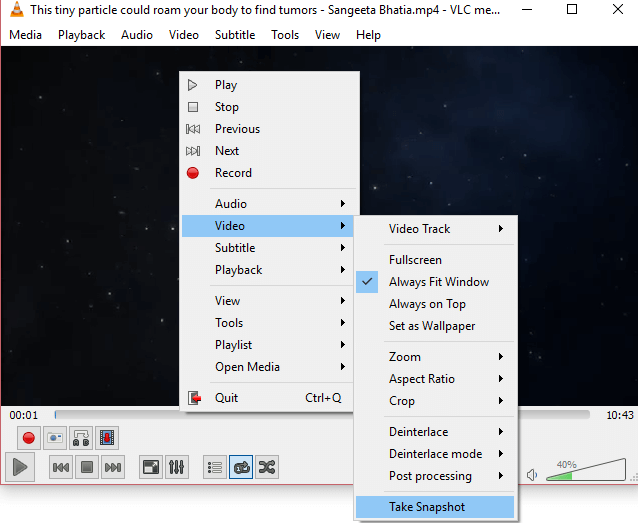
1. Pause the video at the particular location you want to take the snapshot, Right click on the VLC Media Player window and click on Video, then click on the last option, Take Snapshot and the image is taken. (The snapshot is automatically saved in the Pictures folder in Windows, C:/Users/Pictures)
Hope with this, you have been able to take cool snapshot of your favourite spot or position in a movie or a video using the VLC Media player.
Please share below and comment below for any problem encountered.
Typical “expert” (NO) advice! POSTS.
QUESTION. ‘how to alter the format of snapshots? to jpg bmp etc’.
and the ‘expert reply? You Can take a snap shots by clicking!%!!!!!!! which we ALREADY know and use! But wish to CHANGE the saving format.
IDIOT! DONT post how to’s if they do NOT give the answer HOW to.
YOU posted as ‘how to’.
The post link https://aboutdevice.com/change-snapshot-format-in-vlc/ explains how to change the format of snapshots.