Reassign Key on Computer Keyboard to Another Key
Reassign Key on Laptop Keyboard to Another Key
Reassign Key on 2 in 1 Keyboard (Bluetooth Keyboard) to Another Key
Have any of those Computer or PC with the any key on Your Keyboard malfunctioning or stuck? You Can learn how to disable the Key using this tutorial.
This tutorial will assist you to be able to remap or reassign a key to another key on your keyboard. For example, Using the Alt Key as Ctrl Key in case of a malfunctioning or stuck Ctrl Key. You can reassign or remap any key misbehaving on your Computer, Laptop, 2 in 1 Computer or Bluetooth Keyboard .
To do this, we need a tool known as SharpKeys, Click on this link to Download SharpKeys (Note: Install as System Administrator and always run it as System Administrator)
Reassign or Remap any Key on Keyboard
1) After Downloading SharpKeys, Install SharpKeys on Your Computer.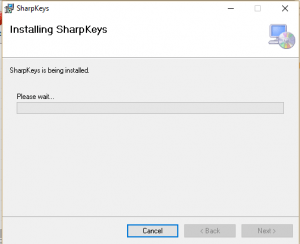
2) After the installation, Launch SharpKeys, it will come with a warning of writing a key to the registry, Click on OK.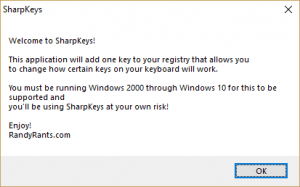
3) The SharpKeys Window will open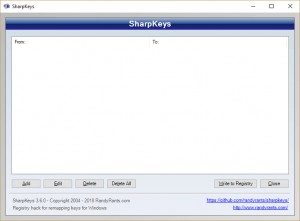
4) Below, Click on Add (Where Orange box is).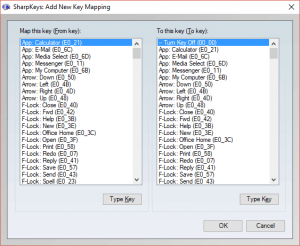
5) Select the any Key (From Map this Key Table) and To this Key, You Select the key you want to remap it to on the list, and then Click on OK OR Click on Type Key and Press the any Key For Map from this Table and then Click on Type Key and Press the Key you want to Use the any Key for, then Click on Ok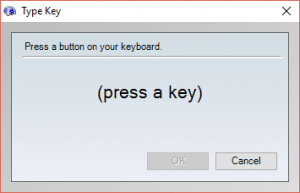
6)Then Below on the right hand corner, Click on Write to Registry (Where the Orange Box is).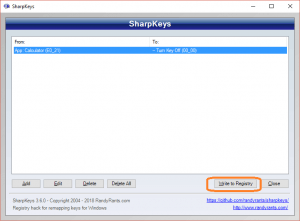
Video : Reassign or Remap any Key on Keyboard

Hope with this, you have learnt How to Disable or Remap any Key on Your Keyboard.
Please share and like below, also comment below for any problem encountered.
Hi Tim, My Delete key was broken and I wanted to assign the function to End key and use it for Delete function. Following your tutorial, perhaps wrongly, the reverse has happened. That is, the Delete has now the End function. Could you please tell me how to revert to original mapping?
Please you can check out this video https://www.youtube.com/watch?v=p2zn8YW3fbA
Trying to reassign “H” value to F1 key, but not getting effected even after restarting machine Kindly advise..
Please Use this video tutorial attached to the tutorial to see if there anything you missed.
https://www.youtube.com/watch?v=p2zn8YW3fbA&t=55s
Hi, my FN key recently broke and I’m trying to rebind it to another key. Unfortunately I have no idea what the key-code name is in Sharpkeys… it is currently between the left control key and the windows key… I wish there was a map that allowed me to see the code names of those keys.
I will check and give you a hint.
I am a visual impaired mac user whos trying to go over to PC. I was just wondering if this method of changig keyboard layout can be used so i can work my PC as “if it was a mc” meaning is there anyway that i could just change the Pc layout into mac layout? so fex i get my “command” instead of control” f.ex. i could press command (would probably be placed where the alt key is now) + c for copy, instead of cotntrol + c ? and i could use the ordinary standard f11 and f12 for volume up and down and and f2 and f3 for display brightness etc. …. Do you have any knowledge of this?