Increase or Decrease Brightness and Contrast of Video in VLC
Ever watching a video that is extremely bright or not bright. VLC Media Player has a function that can assist one to increase or decrease the brightness and contrast of video.
Please follow the instruction listed below to increase or decrease the brightness and contrast of a video Using the VLC Media Player:
1) Launch the VLC Media Player and open the video you want the brightness and contrast setting to be improved.
2) On the Menu Bar, Click on Tools, then Select on Effects and Filter OR Press Ctrl + E on your keyboard to go to Effects and Filters.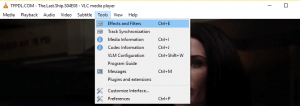
3) A window Adjustments and Effects will open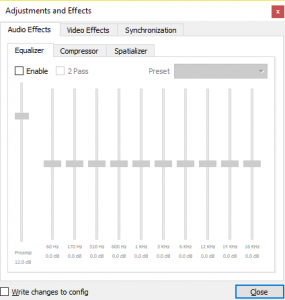
4) On the top menu, Click on Video Effects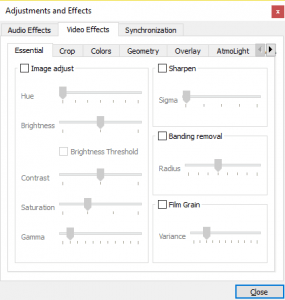
5) Check Image Adjust, then you can change to the Hue, Brightness, Contrast, Saturation and Gamma to your choice.
Hope with this you have learnt How to Increase or Decrease Brightness and Contrast of a Video in VLC.
Please share and like below, also comment below for any problem encountered.
None of my adjustments work in the “Adjustments and Effects” panel. Yes, the “Image Adjust” box is checked. I’m running W10.
Is this a bug?
Please update to VLC 3.0.8 Vetinari to check if issue is fixed.