How to change proxy settings on Vivaldi Browser. Use a Proxy server with Vivaldi Web Browser.To change the proxy settings on Vivaldi Browser, Please follow the instruction listed below:
1) Launch the Vivaldi browser.
2) On the top left hand corner, Click on the Vivaldi Browser V symbol, then Click on Tools, then Click on Settings or press Alt + P on your Keyboard 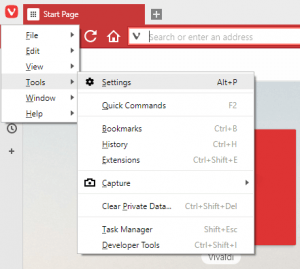
3) The Settings Window will open, on the left hand menu, Click on Network 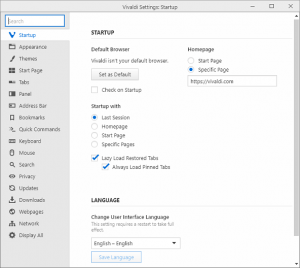
4) On the right hand tab, you will see Proxies, Click on Proxy Settings.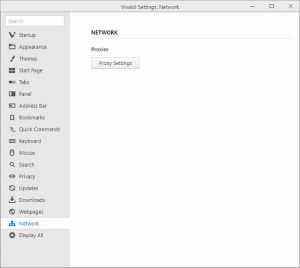
5) The internet properties window will open on your computer, it is set to Connections
6) To Change the proxy settings for a LAN Network, Click on LAN Settings, select use proxy server for LAN
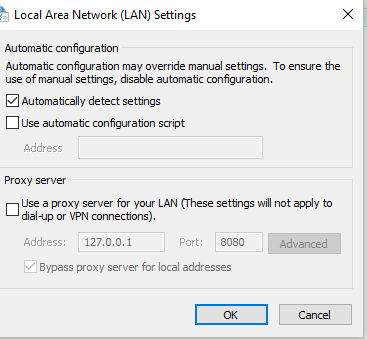
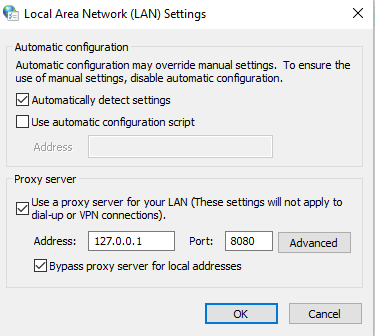 7) Enter the IP address and Port Number, Click on Ok
8) To Change the proxy settings for a Dial Up or Virtual Private Network (VPN), Select the VPN or Dial Name in the Box or Add it and Click Settings.
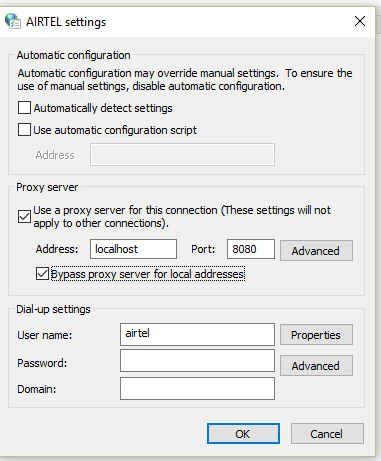
9) Select use proxy server for this connection.
10) Enter the IP address and Port Number, enter username and password, if available and Click on Ok
Hope with this, you have been able to learn How to enable Do Not Track (DNT) feature on Vivaldi Browser on your Computer System.
Please share and like below, also comment below for any problem encountered. Thanks
You are not changing proxy settings in Vivaldi, you are changing them in Windows.
The reason you may have been confused about this is because Vivaldi includes a button to open proxy settings, but it links to the Windows (system-wide) proxy settings. They have nothing to do with Vivaldi; any browser would be affected by the proxy the same way.
There are currently no browser-specific proxy settings available in Vivaldi.
could you please mention that this only works on Windows?
No it doesn’t only works on Windows. If you are making use of a server or VPN which requires proxy, this can be used.
There is no Network setting under Linux in 1.13.1008.40