How to Enable or Disable Do Not Track (DNT) on Microsoft Edge Browser
Do Not Track (DNT) is a web browser setting that requests that a web application disable its tracking of an individual user. When you choose to turn on the Do Not Track (DNT) setting in your browser, your browser sends a special signal to websites, analytics companies, advertising (Ad) networks, plug in providers, and other web services you encounter while browsing to stop tracking your activity
The processes required to How to Enable or Disable Do Not Track (DNT) on Microsoft Edge Browser are listed below:
1) Launch the Microsoft Edge browser.
2) On the right hand side, click on the three dotted symbol, then click on Settings.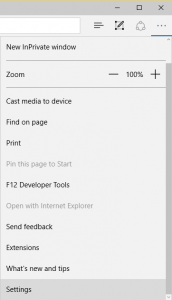
3) Scroll down to advanced settings and then click on it.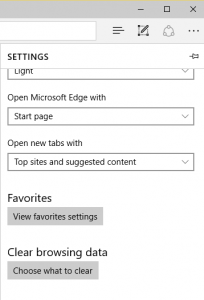
4) Scroll down to Send Do Not Track Request.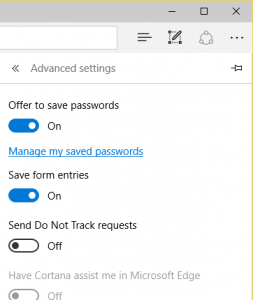
5) Select Either to ON (enable Do Not Track), or OFF (Disable Do Not Track).
Hope with this you have been able to learn How to Enable or Disable Do Not Track (DNT) on Microsoft Edge Browser.
Please share and like below. Also comment below for any problem faced or encountered.
on unblocked me