Clear Cookies, History, Cache and Browsing Data in Opera Web Browser. How to Clear Cookies, History, Cache and Browsing Data in Opera Web Browser
The processes listed below will guide you on How to Clear Browsing Data in Opera Web Browser:
Using Keyboard Shortcut
1) Press Ctrl + Shift+ Delete
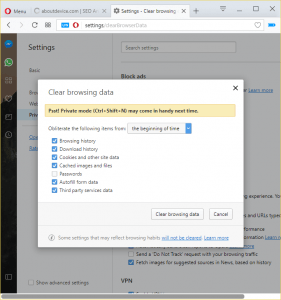
2) Select what you want to clear and then click on Clear Browsing Data.
Using the Settings Window
1) Launch the Opera Web Browser.
2) On the top left hand corner, click on the Opera Logo (Menu) and then click on Settings or Press Alt + P on your keyboard to go to settings.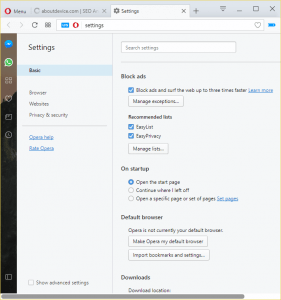
3) On the Left hand tab, click on Privacy & Security.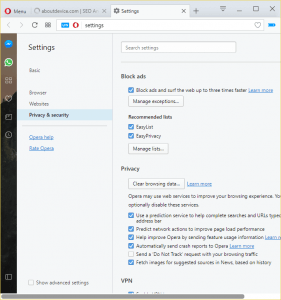
4) on the right hand tab, you will see Privacy and then Clear Browsing Data, Click on Clear Browsing Data.
5) Select what you want to clear and then click on Clear Browsing Data.
Hope with this you have learnt how to clear browsing data on Opera Web Browser.
Please share and like below. Also comment below for any problem encountered.