How to disable notifications in UC Browser. How to enable do not disturb me feature in UC Browser The do not disturb me feature is use to set which sites are allowed to send notifications.
The do not disturb me feature is met to prevent sites from showing notifications.
UC Browser has three options for notification
i) Allow all sites to show notifications.(All websites can show notifications)
ii) Ask when a site wants to show notifications (choose when a websites is allowed to show notifications)
iii) Do not allow any site to show notifications(All websites are disabled from showing notifications)
To disable notification from any site. Please follow the instruction listed below:
1) Launch the UC Browser browser.
2) Go the top left hand corner, Click on the UC Brower logo and then click on Settings.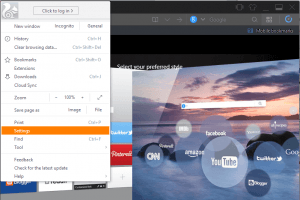
3) The Settings Window will be showed.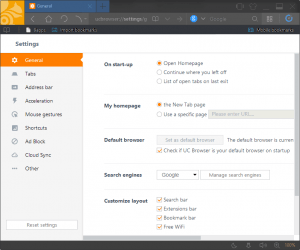
4) On the left hand side of settings page, click on Other.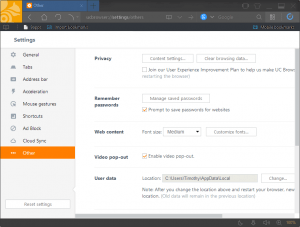
5) On the other settings window, you will see the privacy tab, click on Content settings.
6) The content settings window will be shown,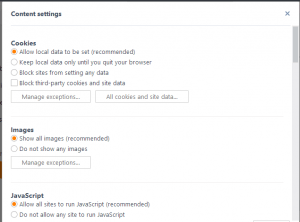
7) Scroll down to Notifications, then check do not allow any site to show notifications, then click on Done.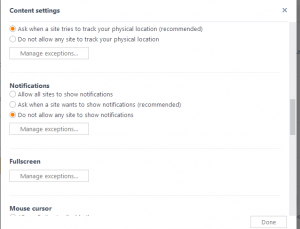
Hope with this, you have been to learn How to disable notifications in UC Browser. How to enable do not disturb me feature in UC Browser Web Browser.
Please share and like below, also comment below for any problem encountered. Thanks
simple blogging and well furnished post.
Thanks for the nice comment
Thanks for sharing this post. If you are looking for web push notifications and also want to increase your subscribers on your website then try
ZetPush at once. This is a really awesome tool to work with.Give it a try at once.