Set Default Orientation to Landscape in VLC (Android)
VLC Media Player for Android has three (3) major form of orientation, either it is set to Automatic, Landscape or Portrait or another setting, which is locked at start.
The Major Video orientation mode are portrait and landscape, you could set your video to default as either landscape or portrait mode. Landscape means watching the video horizontally, while with portrait, the video is watched vertically.
To change the Video orientation on VLC Media Player (Android) to Landscape by default, please follow the instructions below:
1) Launch VLC Media Player.
2) On the upper left hand corner of the screen, Click on the three straight line symbol.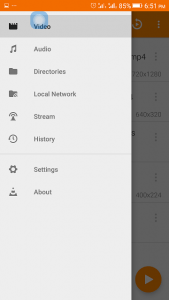
3) A drop menu will show, click, press or touch Settings.
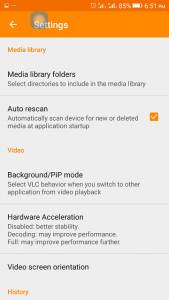
4) The Setting window will open, Click, press or touch the setting “Video Screen Orientation”
 5) A dialog will open, check Landscape.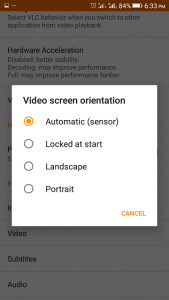
Hope with this, you have been able to Set the Default Orientation on VLC Media Player (Android )to Landscape.
Please Share and Comment below.
Doesn’t work
Please it is working, It only changes to landscape when you are watching a video (Video Screen Orientation).Please did you follow all the instructions listed above.