



WhatsApp is arguable the go-to app when people want to communicate over the internet. Since the app launched, it has been rolling out features to make communication easier for its users. One of the recent update that has made it even more better is the share screen feature. You must have encountered the share screen feature on applications like Google Meet, and Zoom, WhatsApp can also allow you to do that on the app.
WhatsApp bringing the Share screen features enables you to have similar experience like you would on Meet or Zoom. You can share your screen with whoever you are in a call with or view other’s screen. And not only can you do this on the desktop app, WhatsApp also allows you to use the share screen feature on the Android or iOS app too.
How to Share Screen in WhatsApp on Android & iOS
Note: There is no way to share a particular app or window on the Android or iOS version as WhatsApp will share your entire screen. So everything on your screen will be shared including your notifications.
Follow the steps below to share your screen on your Android or iOS device.
1. Start a call with the other person on WhatsApp.
2. Once the call has started, hit Share Screen icon that’s at the bottom.


3. Next, hit the Start Broadcast tab, and your screen will be shared. If you are using Android, and it is your first time of sharing screen on device, then tap the Start Now button that is in the pop-up message.
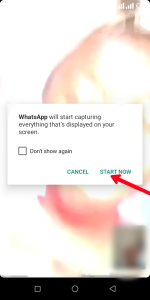
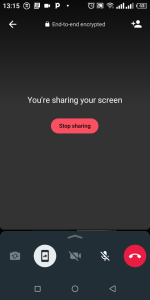
Hit Share Screen; Photo Credit: AboutDevice.com
4. Stop the broadcast by tapping the Stop Sharing button, and it will be stopped.
How to Share Screen in WhatsApp on WhatsApp Desktop App
It is also possible to share screen on the WhatsApp desktop app for either Windows or Mac. However, you can make calls on WhatsApp web as at the time of writing this article.as far as you can link your WhatsApp account with the desktop app, you can make video calls and also share your screen. Here’s how to do it:
1. Launch the WhatsApp for Desktop on your Windows PC or Mac.
2. Next, sign in by scanning the QR code.
3. Once in, open a chat and start the video call.
4. Next, hit the Share Screen icon to begin sharing the content on your screen with the other person on the call.
5. For the desktop app, you can choose to share a particular window or the entire display.
6. Next, select Display, and hit the OK button and your screen will be shared. You can end the screen sharing, but clicking the Stop Sharing button.
In Conclusion…
No doubt, WhatsApp has improved over the years. With features that it adds to make it have an experience similar to other social platforms, it has proved that it is worth using. The share screen feature is a feature that will enable teams that prefer to use WhatsApp for their meeting to share their screen easily. We hope you found this guide helpful? If you did, kindly leave a comment and don’t forget to share…