


Adding page numbers to your Google Docs document can help you organize and navigate through your work more efficiently. Whether you’re working on a report, essay, or any other document, knowing how to number pages is a useful skill. Thankfully, Google Docs provides simple tools for this task, both on the web and on your phone. In this guide, we’ll walk you through the step-by-step process for numbering pages on both platforms. Whether you prefer working on your computer or on the go, you’ll be able to follow along easily. By the end of this article, you’ll have the knowledge to add and delete page numbers with ease, giving your documents a polished and professional appearance..
How to Add Page Numbers on Google Docs
Are you looking to add page numbers to your Google Docs document? Whether you’re on the web or using your phone, it’s a straightforward process. Let’s break it down:
On the Web:
1. Open your document on the Google Docs website.
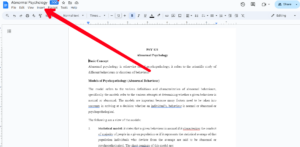
2. Go to the Insert tab on the Docs toolbar.

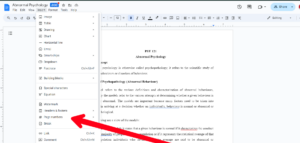
3. Click on Page numbers and choose your preferred format.


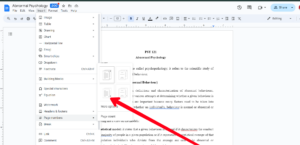
4. For more control, select More options, set your preferences, and click Apply.
On Android or iPhone
1. Open your document in the Google Docs app.
2. Enter edit mode by double-tapping.
3. Tap the plus + sign, then Page number, and choose your format.


Deleting Page Numbers:
On the Web:
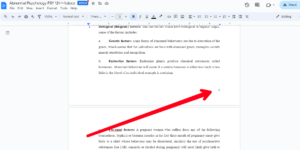
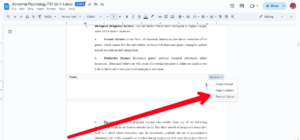
Double-click on the page number, and then select Options, then select Remove header/footer from the Options drop-down menu.




On Android or iPhone
Double-tap to enter edit mode, then simply tap the page number and hit Backspace to delete it.
Remember, Google Docs offers more customization options, like aligning page numbers or starting from a specific page. While the web version is more feature-rich, the mobile app gets the job done too.
In Conclusion…
In conclusion, mastering page numbering in Google Docs is a valuable skill that can enhance the organization and readability of your documents. Whether you’re a student, professional, or casual user, knowing how to navigate Google Docs efficiently is essential. With the step-by-step instructions provided in this guide, you can confidently add and remove page numbers on both the web and mobile versions of Google Docs.